

Creating a Medical Teaching Video - Part 3
John Yeats, AAIMBI
This is a series of five articles based on a presentation given at BIOCOMM 2025 (Tucson, May 5-9, 2025). It is written with the intent of guiding the reader through the steps required to create a teaching video pertaining to medicine.
Part 1: Introduction and General Thoughts
Part 2: Protocols and Procedures for Filming in an Operating Theatre
Part 3: Considerations in Editing Techniques
Part 4: Sound, Narration, Inserting Photos and Text
Part 5: Split Screen, Exporting Files, and Conclusion
Considerations in Editing Techniques
In Part 1: General Thoughts, we looked at the principles behind the making of a medical teaching video. In this third part of the series, we will look at specific video editing techniques. Of course, the use of these editing techniques will be dependent on the subject nature of the video project. For the scope of this article technique advice will pertain mainly to Adobe® Premier Pro® (APP) software.
For Final Cut Pro® (FCP), Avid Media Pro®, Camtasia® and other software, information is readily available online, via You Tube and other similar platforms. It should be said that most software programs have more than one way to achieve similar effects.
The capabilities of each of the major software platforms is huge. There may be the feeling that one could always push the process a little more. While quality output is always to be expected, any production is also influenced by time constraints and costs.
In this article, links to tutorials will be given as applicable. The filmmaker should employ techniques that relate directly to their experience and comfort level. It is generally the case though that every project is a learning experience, it is very likely that there will be research into effects and techniques during the editing process. There is a plethora of learning material online for the editor. Speaking personally, most editing sessions are learning experiences. New techniques, shortcuts, workflows can always be adopted. Below I discuss key concepts in the editing process.
The Digital Workspace
It is important to be familiar with the workspace in the software program that you choose to use. APP workspace consists of several essential panels. The basic set includes:
Project Panel: Organise and find media
Source Monitor: Preview clips before adding to the timeline
Timeline Panel: Arrange sequences and clips
Program Monitor: Display the progressive edit
Other important panels that may be custom located include the Essential Graphics panel, Lumetri Colour panel and Essential Audio panel. An example of an APP workspace appears below:
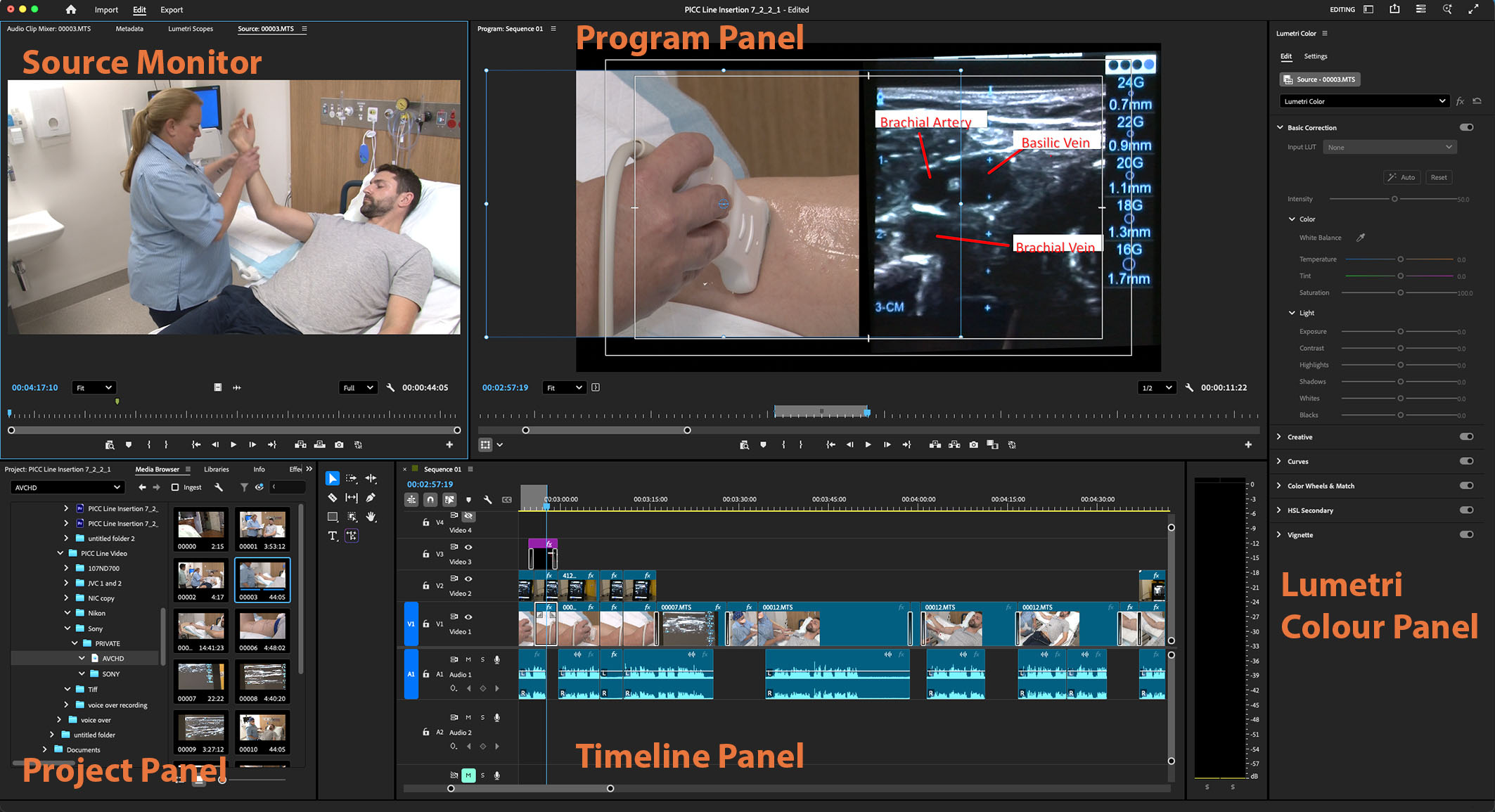
The editor can define and save their own custom workspace. Workspaces can be set out using default or custom panels and with flexibility as to how these are displayed. If an editor’s custom workspace is lost it is a simple option to retrieve and return to the saved workspace.
Below is a link is to an Adobe® tutorial site and is a brief introduction to arranging and maintaining a workspace:
https://www.adobe.com/learn/premiere-pro/web/get-started-premiere-pro?locale=en&learnIn=1
Getting a Project Started
It is most efficient if all assets (e.g.: camera footage, still photographs, diagrams, graphics and audio files) pertaining to the project are placed and kept in a single folder. If ongoing back-up copies are required, it is best practice to make a copy of the working folder in its entirety during the editing process.
Naming: The initial action for beginning a new video project is to name the project. Each collection of edited sequences is called a project, and it may take, more than one ‘project’ as defined by the software program before a result for your overall Project is reached. The default name for each new project is “Untitled”. It is best practice to not leave this as the title. Providing a relevant name for each ‘project’ such as “PICC Insertion_1” will be useful perhaps weeks down the track when finding this material becomes necessary.
Location: As per Naming, the location of the project is important to attend to at the very beginning. A small amount of time here can avoid frustrations further along in the edit.
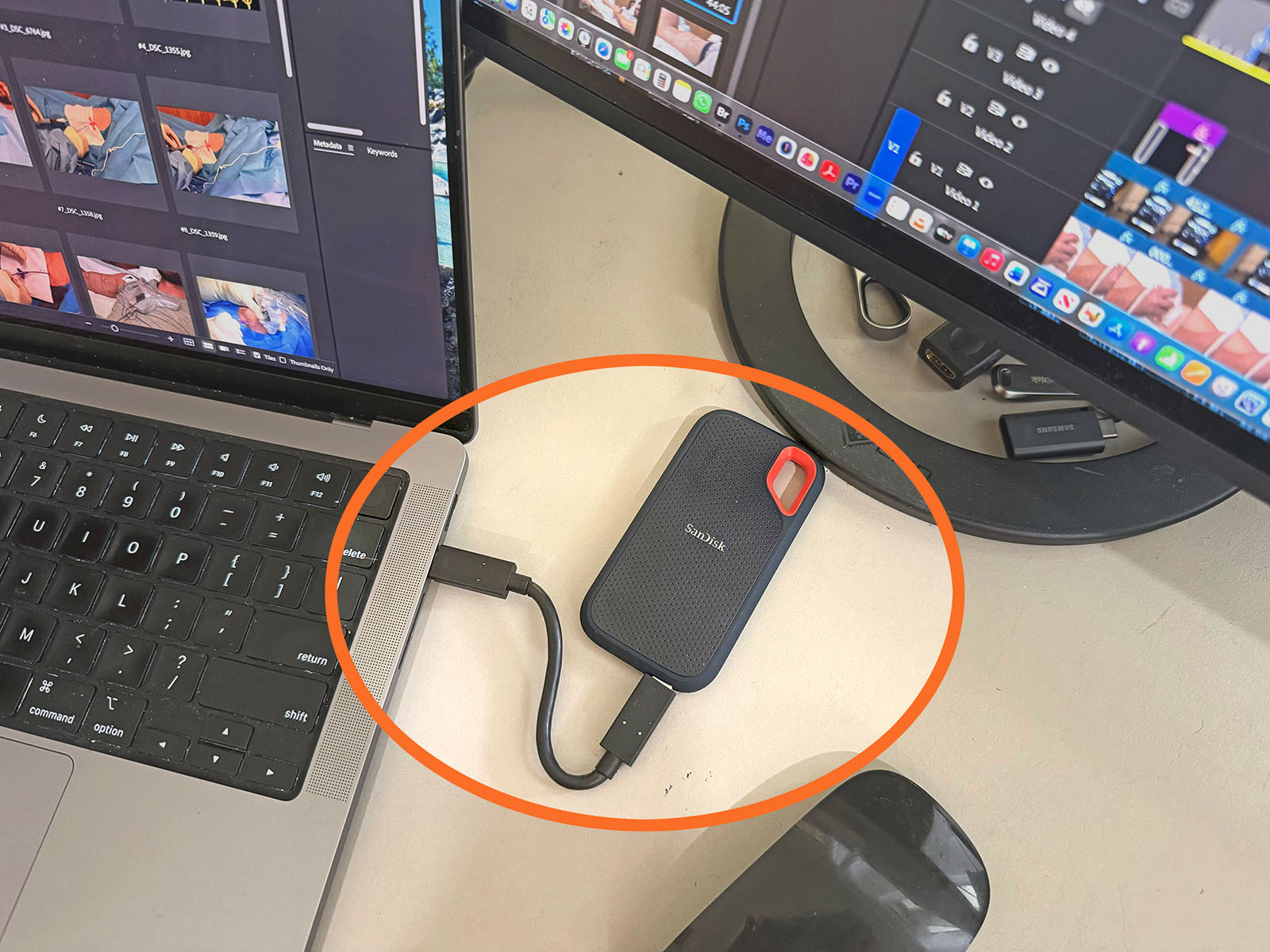 It may be useful to use a portable and dedicated Solid State Drive (SSD) device to edit video. SSD’s use flash memory and are typically known for increased performance in areas of file transfer speed and reliability. Editing software often will incur heavy demands on a computer’s storage device as well as the Central Processing Unit and Random Access Memory. It is good practice to keep one or more back-up copies of the project on separate devices should anything untoward happen to the working project file or the SSD drive.
Importing: All video editing software will have a means of importing content or assets. These may be video footage from one, two or more sources, edited still photographs, graphics, illustrations, and audio files such as voice over clips and music. The processes range from importing assets via an Import / Browse method or it may be as simple as dragging and dropping into the source monitor or even directly on to the Timeline.
Guidelines for beginning a new project in APP are well explained in Adobe Learn tutorials from the Adobe.com® site. Choose the APP icon from the Learn & Support drop down. Go to the ‘Get Started’ button to find relevant videos. The linked video below, Create a Project and Import a Clip, is a useful tutorial about starting a project and importing prior to organising media.
https://www.adobe.com/au/learn/premiere-pro/web/create-project-import-media?learnIn=1
Another helpful link that gives some useful tips on naming, location and importing media in APP can be found at: https://youtu.be/cmcUPRvwSRI?si=KsF58gmrJVLrU9fb. In the same series, this link speaks about importing and organising media in a more detailed way: https://youtu.be/GnY37KEeM6E?si=qRYaxQms9ZN81mIs.
It is well worth the effort and time to ensure the imported assets are organised well in the Project panel, especially if the project involves multiple layers and insertions. The project panel in APP, for example uses ‘Bins’ and ‘Sequences’ to organise assets and timeline sequences respectively. As part of editing workflow naming these appropriately is important to ensure efficient retrieval of assets and sequences that have been partially or fully edited. Sequences can be later joined together in the timeline as the project proceeds.
Deciding on Resolution and Creating Sequences
Having named and located assets to minimise future confusion, now the editing process in the Timeline begins. Video projects are essentially a collection of sequences that appear on the Timeline. The main footage is laid down, and additional layers and adjustments can be made to each sequence. The sequence should, at the beginning be named, or renamed in the project panel as part of the organisational process.
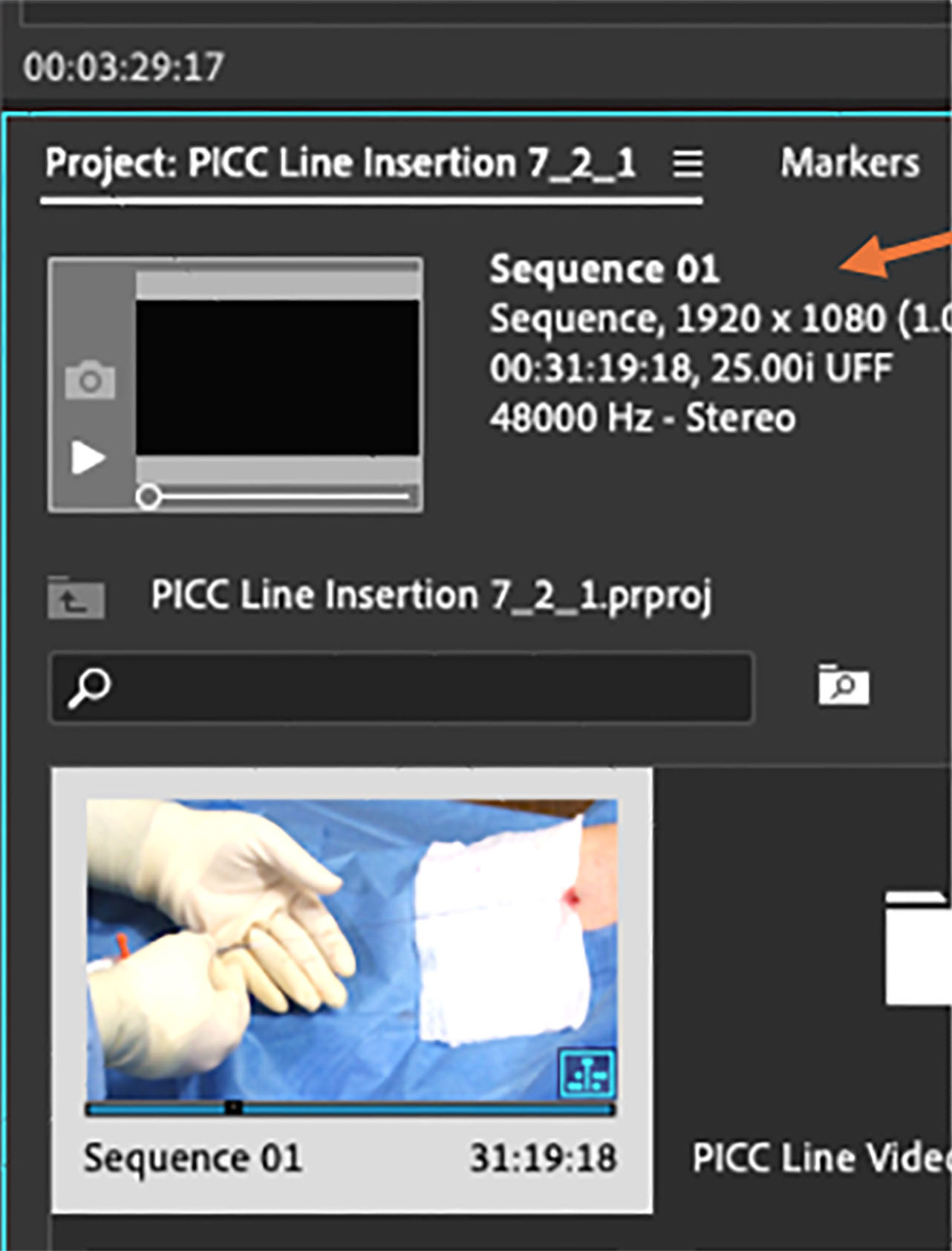 The editor will need to pay attention to the resolution of the footage that will be used in the project. Resolution can be seen by selecting ‘Preview Area’ from the drop menu next to the clip name, as per the arrow in the screenshot to the right. In the screenshot, the resolution of the clip can be seen along with the audio data. The resolution for this clip (Sequence 01) is 1920 x 1080, duration of the clip is 31min 19sec and the frame rate is 25 frames per second and interlaced. Audio data can be seen as 48000Hz 16 bit and Stereo.
Since Timelines in Premier Pro are created by dragging and dropping clips into the Timeline panel, the resolution and frame rate of the clip placed into the Timeline will be the same as the clips. Issues may occur when using footage with differing resolutions and aspect ratios. Use of the feature ‘scale to frame size’ when the timeline clip is right clicked will enlarge or reduce a clip with different resolution to the set size. Aspect ratios will then need to be dealt with by cropping or scaling, for example, to meet the appropriate frame size.
Here is a link to another video from the previously linked presenter to explain this in visual detail: https://youtu.be/1HJKE_W5Cm8?si=DibHff79ssBsFBXt
Syncing and Cutting Video
If multiple video captures are to be used it will be best to insert each capture in synch with each other as layers in the Timeline. Video editing software has a multi-layer approach to both video and audio tracks. If exact synchronisation is critical to the video content a clapper board can be used in the capture process. Clapper boards maybe be available as the classic material (mostly wooden) device or as a digital app for phone or tablet. 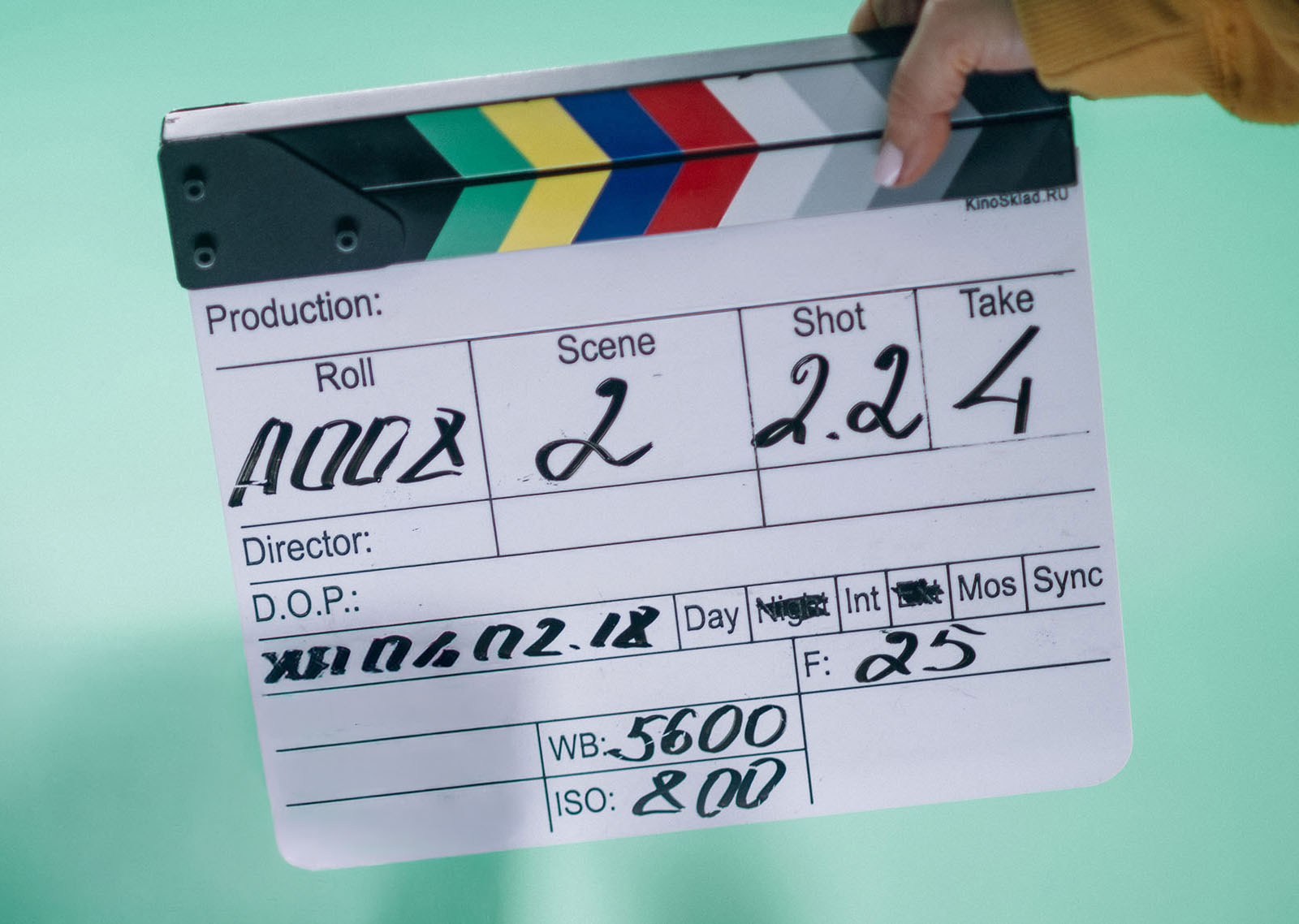 For the latter there is a variety of choices that may be made. Digital clapperboards can be easily downloaded on to a smart phone or tablet. Generally, video is synced visually as there is a running digital clock that is filmed. A tablet-based clapper board app will have an obvious size advantage. Videographers may prefer a mechanical one that produces a sharp clap that is useful for syncing different footages via sound. This is particularly useful when filmed dialogue is used as content. The mechanical board also has white sections which may be useful in ascertaining white balance as compared to the digital version. It is good practice for all devices to see the clapper board simultaneously for it to be useful.
It is important to decide, prior to the rough edit if synchronisation of footage is a critical component. Unless all layers are cut simultaneously synchronisation may only be approximated at later editing.
Manipulating Speed & Duration
The editor can slow down or speed up footage for various purposes. Surgical or procedural work, especially that which is commonplace or repetitive does not always necessitate ‘real time’ viewing. Increasing speed by a factor of 1.25 may be considered for depicting sections of a surgical procedure. This factor allows for faster viewing while the motion is kept smooth and natural. However, there may be some parts of the project’s footage that will benefit by slowing the speed. It is discretionary and the final decision may be dependent on the expert’s evaluation of content.
In APP there are a variety of ways to speed up or slow down a clip. Simply right clicking a particular clip (or alternatively selecting ‘clip’ from the menu bar) will show the clip’s speed and duration. Changing speed can easily be achieved by selecting a percentage e.g., 75% to slow down or 150% to speed up. Alternatively, the user can determine and set the desired duration for that clip. A third method is to use the Rate Stretch tool. This is an automated tool and is designed to fit a particular clip between 2 existing clips.
It is most important to realise that because the audio input is linked to the video input the audio will follow the video speed chosen unless it is un-linked. In APP this can be achieved by right clicking the clip and selecting ‘unlink’. The audio can then be modified or deleted or overridden at this point. APP does have a fix: In the speed and duration options box ticking ‘Maintain Audio Pitch’ may be useful if the speed is within limited parameters.
Below is a link to a video about Speed & Duration giving alternative methods to change speed. https://www.youtube.com/watch?v=iKNWLjND0uA
Curves, Adjustment Layers and Colour Matching
Levels and Curves Adjustment is offered in Premier Pro and should be addressed prior to colour corrections. In my opinion, for a teaching video where realistic, daylight temperature lighting is usually the preference, Levels adjustment is used to correct a problem with video capture where lighting is poor. Levels in video deals mainly with white point and black point in the combination of RGB as well as each channel of RGB. The colour matching/comparison and curves tools mentioned above I believe are the more useful options. Personal preference will often decide here as with levels and curves adjustment preferences in photographic editing.
Careful consideration should be given to the colour matching of each of the pieces of footage. Footage may have been shot at the same time using different cameras or devices. Perhaps content shot under different lighting conditions or at another location has been included. In any case it is important that colour matching is consistent throughout the video project.
As previously mentioned, a useful shooting tip for colour correcting and matching is to include a white card at the beginning (or end) of each location shoot so that each camera’s footage (if using multiple capture devices) can be approximately balanced in the editing process.
In APP the process of colour correction can be addressed by use of the Lumetri Colour tool or panel found via the Window drop down tool. Basic adjustment of colour matching and curves using Lumetri Colour is presented on this page from the Adobe Learning site: https://www.adobe.com/au/learn/premiere-pro/web/color-match-and-curves?learnIn=1
For a more advanced video regarding Colour Correction especially in connection with skin tone variance this link is quite helpful: https://youtu.be/_lSyl-e46Mw?si=J5WB1RJvkZaNcFe
For Final Cut Pro users this link may be helpful: https://www.youtube.com/watch?v=Sr6zAXAis2E The presenter employs a tool known as Comparison Viewer to match footage from different lighting conditions
In Part 4 of this series we will look at adding sound, narration, inserting photos and text.