

Creating a Medical Teaching Video - Part 5
John Yeats, AAIMBI
This is a series of five articles based on a presentation given at BIOCOMM 2025 (Tucson, May 5-9, 2025). It is written with the intent of guiding the reader through the steps required to create a teaching video pertaining to medicine.
Part 1: Introduction and General Thoughts
Part 2: Protocols and Procedures for Filming in an Operating Theatre
Part 3: Considerations in Editing Techniques
Part 4: Sound, Narration, Inserting Photos and Text
Part 5: Split Screen, Exporting Files, and Conclusion
Split Screening and Cropping
Split screening is a useful technique for showing simultaneous events, or comparisons. It is used to display two (or more) captured views to convey content using multiple inputs. For example, an ultrasound guided cannula insertion may be depicted by showing simultaneous footage of the cannula entering the skin alongside synchronous ultrasound footage. Images can be displayed side by side, or in other arrangements. The original aspects ratios can be maintained or may be modified to any aspect that fits well. There are a variety of techniques available in APP to achieve this. Again, layering of the footage is required. It can be achieved applying selecting and applying the motion effect to each sequence of footage and adjusting scale and position.
Split screening should only be used where necessary to display co-existing information, such as the example above because it is at very least, distracting for the viewer’s eye in an instructional video.
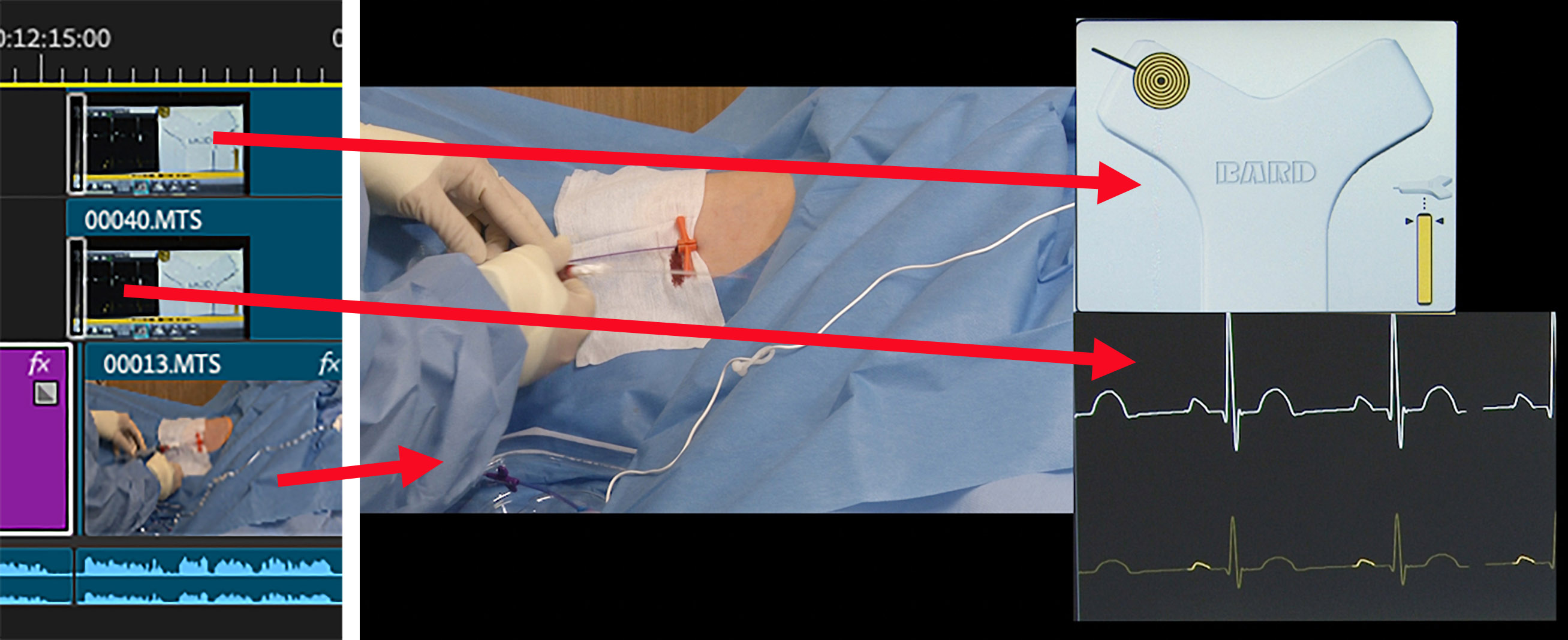
In the above illustration the timeline segment is on the left and the program monitor on the right. The aim in the video as stated above was to demonstrate simultaneous changes noted in the monitor views (PICC line tip location on the top and ECG below) as a PICC line is introduced via a cannula in the patient’s arm. The split screening is achieved from the three layers seen in the timeline. The monitor views are duplicated footage but separated by cropping and re-location to ensure that all the information could be visualised simultaneously in a 16:9 format.
Cropping is a useful technique however and should be considered in each sequence to focus the viewer, coming in tighter on the subject at hand. At all times the filmmaker should be aware of distracting background content.
Transitions
Transitions are a vital part of any video production. They enable flowing movement between scenes and sequences. It is helpful to be mindful of the use of transitions when filming. A good rule of thumb is to count to three before beginning a shot, move, or action and again when the shot is complete to provide handles for transitions. Avoid the habit of moving the camera immediately off the focus at the end of a shot and always film more than you think you need. Do detail shots or close ups of equipment or instruments or shoot wider views and use these to overlay (with appropriate transitioning) any poor footage in the main action. This additional footage is traditionally called “B-roll”. In short, we need to shoot like an editor.
Transitions are generally inserted towards the end of the editing process. The reason is that some footage may be added or deleted throughout the project. Every cut requires a transition to maintain smoothness and consistency. Editors will have varying preferences. My strategy is to carefully find each cut in the sequence towards the end of my edit and then apply transitions. For teaching videos, I believe transitions should be consistent in type and length and should be seamless. A good transition is one that is not noticed. The content is what is important, and any editing device or tool should not detract from the message.
In APP, as with all editing software, there are a variety of transition types to choose from. Cross dissolve, I believe, is the simplest and easiest to use with smooth results. It is the easiest on the viewer’s eye in my opinion.
In APP, a cross-dissolve transition is achieved manually by dragging the selected transition from the Video Effects/Video Transitions/Dissolve/Cross Dissolve menu/folder on to the editing point, between cuts. The timing of the transition can be altered by dragging on the beginning or end of the coloured transition block. The transition effect can be deleted or altered at any time.
A useful video posted in the Adobe in a Minute series is as follows: https://youtu.be/-ctmmRdr60M
Privacy Blurring
Use of blurring will be dependent on the nature of the video project and the details of the consent granted by subjects. The techniques that facilitate this effect will vary between software programs and each program. “Tracking” and “Auto Tracking” are terms to be familiar with if looking for support in this area. APP uses a system that involves keyframes. This is a technique very much like that used motion effects. Size, shape and opacity of the blurring effect are all controllable.
Both APP and FCP now have an auto tracking feature which recognises a designated object (e.g., face) and tracks it through the video, saving much time if tracking were to be done manually.
This is a link to an Adobe tutorial for APP that explains how to mask and track a subject where anonymity may be required: https://youtu.be/pg2QuHlLhKo, and another: tutorial here: https://youtu.be/EasKJxIEiJU.
For Final Cut Pro users, this link leads to a short video for facial blurring: https://www.youtube.com/watch?v=b-8zSIUmIsY
 Final Proofing and Tweaking
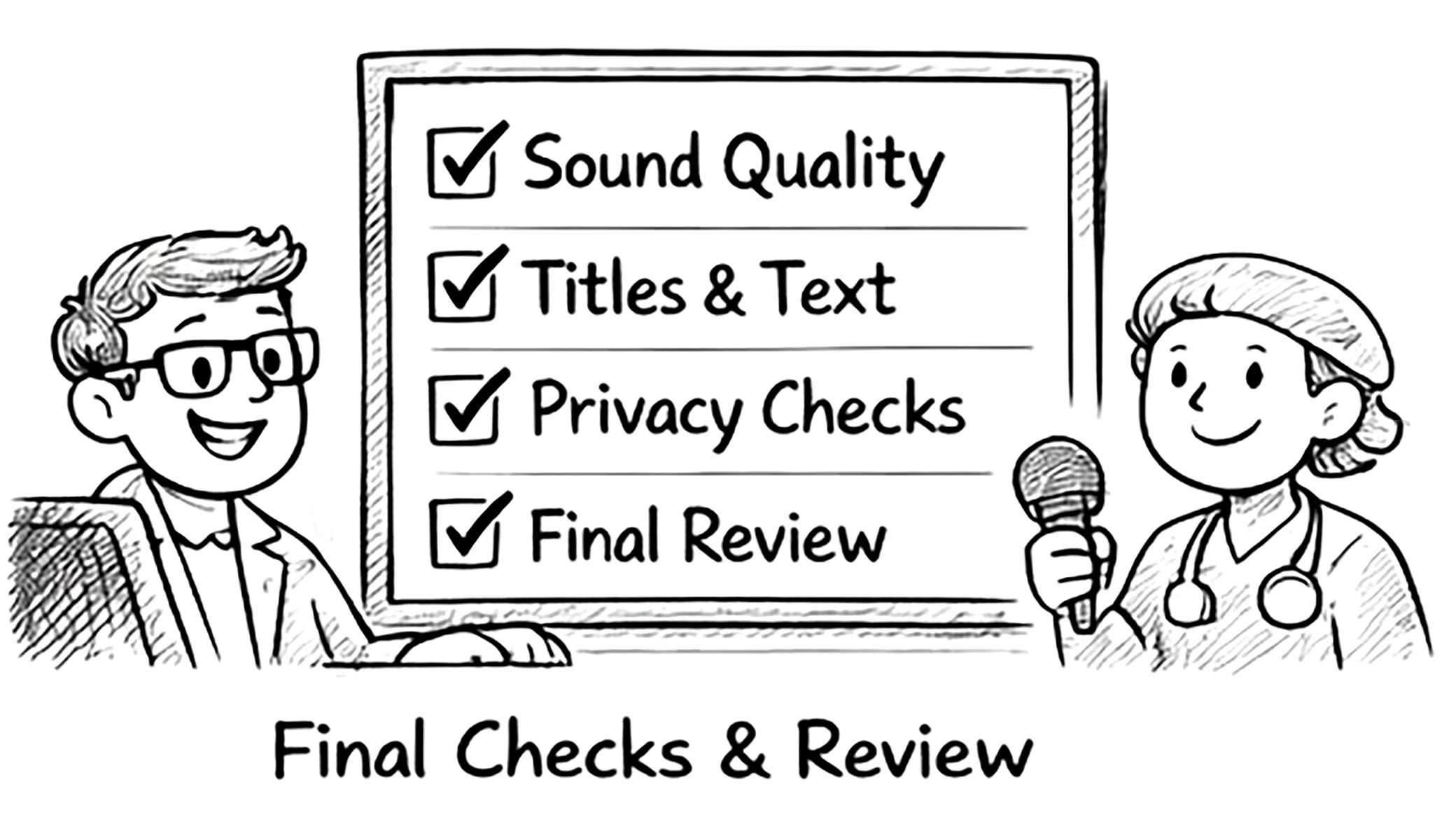
At the end of the filmmaking process final tweaking and proofing are critical steps. Attention must be paid to both video and audio to ensure that errors and glitches do not make it through to the export stage.
For audio: When proofing audio it may be helpful to turn the video display off so as not to distract from evaluating the audio quality. Audio proofing may be defined or described as an audio mix. Firstly, ensure that all clips have the primary dialogue on Audio tracks 1 and 2, music clips on tracks 3 and 4 and sound effects clips on tracks 5 and 6 if all tracks are required. For the audio mix APP users should go to the ‘Window’ drop down menu bar and find Audio Meters and ensure that is checked on. Audio levels should be adjusted for every single clip by use of the effect control “clip volume” adjustment slider. The audio bar to the right of the timeline should is viewed to check each clip.
Output volume for speech should approximate negative 6 (-6) decibels. (In APP there are colour guides to show if the volume peaks or troughs outside the desired range. Green turns to red if too high and turns to yellow if too low.) Any music track should also be checked. On its own a music track should also be -6 decibels. When dialogue and music are together, the music track (separately) should be lowered to between -19 and -23 decibels.
For Video: In the final edit a colour correction should be performed to ensure that optimal visual levels curves and colour are on track. As mentioned earlier, curves, adjustment layers and colour matching may have been performed early in the edit. Some editors prefer to do this towards the end of the process. In any case, a final viewing with respect to exposure and colour balance is vital. The method of checking analytically is Lumetri Colour and Lumetri Scopes tools. These can be found via the ‘Window’ drop down menu. As with sound, each clip is checked – here, for white point and black point.
A guide to colour correction procedure is seen towards the 11 –14 minutes mark of this very informative video, How to Edit a Documentary in Premier Pro. https://youtu.be/CTVEn_wE6z0
Rendering
Rendering of the sequence and clips is performed to facilitate playback of the video. In past times this was a very time-consuming process. With modern day programs and more capable computers it is much faster.
Rendering sequences regularly during the edit process is a good practice as it makes previews and playbacks a lot easier. In APP rendering in and out (marking the ends of a sequence or section with keyboard shortcuts ‘i’ and ‘o’), as well as rendering a selected area of the timeline for preview will be more time efficient than rendering the entire project repeatedly. It is good to render any section that has had effects and/or transitions added to it.
In APP a coloured line in the timeline above the layers indicates where rendering is needed. A red or yellow line in the timeline indicates that rendering is necessary. For example, if a section of the video is displaying a red line, then the video preview or playback may stop at that point. Reasons and factors for this may include the computer hardware that is used, the resolution and codec of the film footage. Codec pertains to the extent and type of compression/ decompression of video files. A green line indicates the area has been rendered or that there will be no playback issue.
In short, frequent rendering of clips that have been affected by effects and adjustments is a good habit to get into. It will eventually save editing time. Rendering does not commit the editor to effects in sequences or scenes. All new edits will override previously rendered material but will need re-rendering before finally exporting.
Exporting, Formats and File Size
Exporting is the final step in production of the video. If the proofing cannot be viewed by the expert or the requestor alongside the film maker, a provisional export may need to be done to provide a viewing copy for proofing by those involved in the project. To repeat a point made in part one of this series, the expert must proof the video prior to final export to ensure the information conveyed by both audio and visual content is factual and conducive to learning.
Prior to going to the export window, the final sequence (which is the actual, full video that is eventually produced) should be named and selected. In APP this can be achieved by dragging a mouse selection over the sequence or to be more accurate setting the play head and the beginning and end points and hitting ‘i’ and ‘o’ respectively on the keyboard.
In APP the Export tool is found in the File drop down menu. This will bring up a window which will require several decisions to be made:
Location and Title: Changes to these can obviously be made after exporting but organisation of these will save time. Having a set folder for the video export is helpful if not necessary. For the sake of proofing, several complete or partial exports will likely be needed prior to the final export of the entire program.
Format: Discussion of the format of the final video should have taken place early in the project planning and will likely be guided by the requestor of the video. The intended usage of the final video will dictate the format. It may be necessary to export the video in several formats for different display protocols.
Format choice is all about using the highest quality video that will play smoothly on whatever platform is chosen. Editing software programs will offer a range of formats. Because of the popularity of platforms such as YouTube and Vimeo the H.264 format is generally required.
MP4 is another popular format because of widespread support from playback devices. Note that it is often confused with MPEG-4 which is a standard for compressing digital audio and visual data. For example, MP4 is a file format that can store MPEG-4 encoded video and audio. Other formats are available for specific display or playback purposes. Generally, as audio follows video, the audio settings in the export window does not require any alteration.
File Size: The size of the final video file is a function of its duration, effects and resolution. If the video footage has been shot on 4K or higher devices, the final file size of the video can be quite large. It can be reduced prior to export in Premier Pro by working in the Video Settings section of the Export window. File size can be reduced by moving the Target Bitrate slider to the left. Caution is advised when sliding bitrate down here, as the video quality may be affected. The final file size of a video can be reduced post-export as well.
There are a number of free programs such as Handbrake, a video transcoding program which can produce a significant reduction in the output sizing of a video. There are other points to make regarding exporting, but these are well covered by the links to YouTube tutorials found below.
This link provides a good summary of steps immediately prior to export and discusses the use of Adobe Media Encoder. The video link is based on exporting for YouTube and Vimeo usage. https://youtu.be/YxcF3fuY2yM
The following link contains more of a deep dive into choices of video settings and even provides suggestions for preset templates for the viewer to download. It is easy to save your desired settings so they are the preset for the next export or the next project. https://youtu.be/DHSw4yghUZs
Conclusion
As the reader will have already noted, there is a heavy reliance on online teaching platforms such as YouTube when learning and trialing video editing techniques. Visiting the websites of the software programs that is being used will give useful and necessary information. Video software programs can at first appear complex and non-intuitive, but confidence is gained with repeated usage and practice. It has been my personal experience and need to search online for tips and techniques when faced with a new editing challenge.
As mentioned at the beginning this article has mainly dealt with Adobe® Premier Pro® processes and techniques, as it is the author’s preference. There are many options to choose from regarding video editing software. Personal preference, availability and financial concerns will determine an editor’s choice of software. The outcome is always to be a clear and concise teaching tool that meets the brief outlined by the requestor.
A link to the video referred to often in this article, created by the writer is: https://youtu.be/UikU5DCzQGM
The example video used in this series was created in 2018 for the purpose of outlining a procedure (ECG guided PICC insertion) to be viewed at a medical conference workshop by anesthetists and anesthetic nurses. It formed the basis of the presentation Creating a Teaching Video at BIOCOMM 2025 by the writer. Although it is by no means a perfect example of a teaching medical video, it is included here to demonstrate that at the time of producing this video, the filmmaker had very limited experience in video production. There was significant input from online resources in learning techniques such as split screening, insertion of text, illustrations and photographs with motion, synchronization of video footage, voice over recording and many other techniques. Despite its flaws, the final product was well received at the workshop and considered fit for purpose as teaching material for the procedure outlined.
Embarking on a teaching video project is in every case quite a daunting task, especially for the department that is primarily focused on still photography. However, with current photographic equipment, excellent video capture is within the grasp of most departments. In times of the many pressures on medical photographic departments (financial, relevance, staff availability) these projects should not automatically be rejected or put into ‘the too hard basket’. Relevance is an all-important issue for medical photographic departments and there is constant need to produce good rapport with the senior medical staff. There are also benefits in increasing our skill set.
It has been my experience that every project has required some degree of ‘learning on the job’. It is to our benefit to be taken out of our comfort zone from time to time. As medical photographers we have the privilege of working with experts in a range of medical specialties. Working along-side them to convey their knowledge and experience is indeed a high calling and will eventually be of benefit to the community that we serve.