

Creating a Medical Teaching Video - Part 4
John Yeats, AAIMBI
This is a series of five articles based on a presentation given at BIOCOMM 2025 (Tucson, May 5-9, 2025). It is written with the intent of guiding the reader through the steps required to create a teaching video pertaining to medicine.
Part 1: Introduction and General Thoughts
Part 2: Protocols and Procedures for Filming in an Operating Theatre
Part 3: Considerations in Editing Techniques
Part 4: Sound, Narration, Inserting Photos and Text
Part 5: Split Screen, Exporting Files, and Conclusion
Sound
It cannot be overstated how important sound is to any video program. This is certainly the case in a teaching video. Sound is where facts are delivered in a teaching video. Sound quality can make or break a video no matter how excellent the visual footage is. The aim of sound editing is to ensure dialogue is synchronised perfectly with the visual and that there are sufficient clarity and volume, with minimal distractions.
While software programs like APP, FCP and others are primarily visually oriented the sound editing tools are quite powerful. The following link leads to the Adobe Learn: Mix Audio like a Pro that has some excellent notes on editing audio in APP. https://www.adobe.com/learn/premiere-pro/web/professional-audio-mix?learnIn=1
In APP audio tracks are visualised directly under the video layer and multiple tracks are offered. One tip is to place audio tracks in layers according to the type. For example: Dialogue and narration on tracks 1 and 2, music on tracks 3 and 4, and sound effects on tracks 5 and 6.
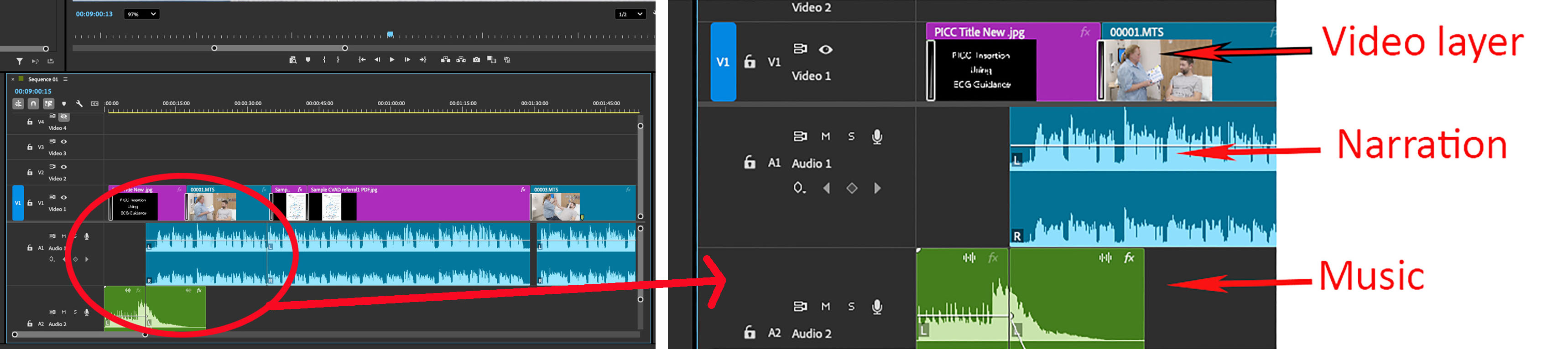
Audio tracks can be unlinked from the visual if required. The effects control panel for audio is a powerful source of modifying and enhancing audio tracks.
If audio from the original footage will be used, then it is important that it is recorded by the best means possible. Consider the use of lavalier (lapel) microphones (wired or wireless) for dialogue to ensure the sound quality is less affected by the ambient environment. It is important that the videographer is monitoring the sound that is coming into the recording device. This is basic but it is easy to overlook when there are many factors to consider.
Voice Over and Narration
There are two main ways to convey the audio component of teaching material in the creation of a teaching video.The first is the insertion of a pre-recorded scripted audio file into the project and the second is to record audio directly into the project. The choice will depend on personal preference, the availability of the narrator and the hardware that is to be used. In both cases it is important to realise the benefit of a well written script that carries the essential points of the teaching material.
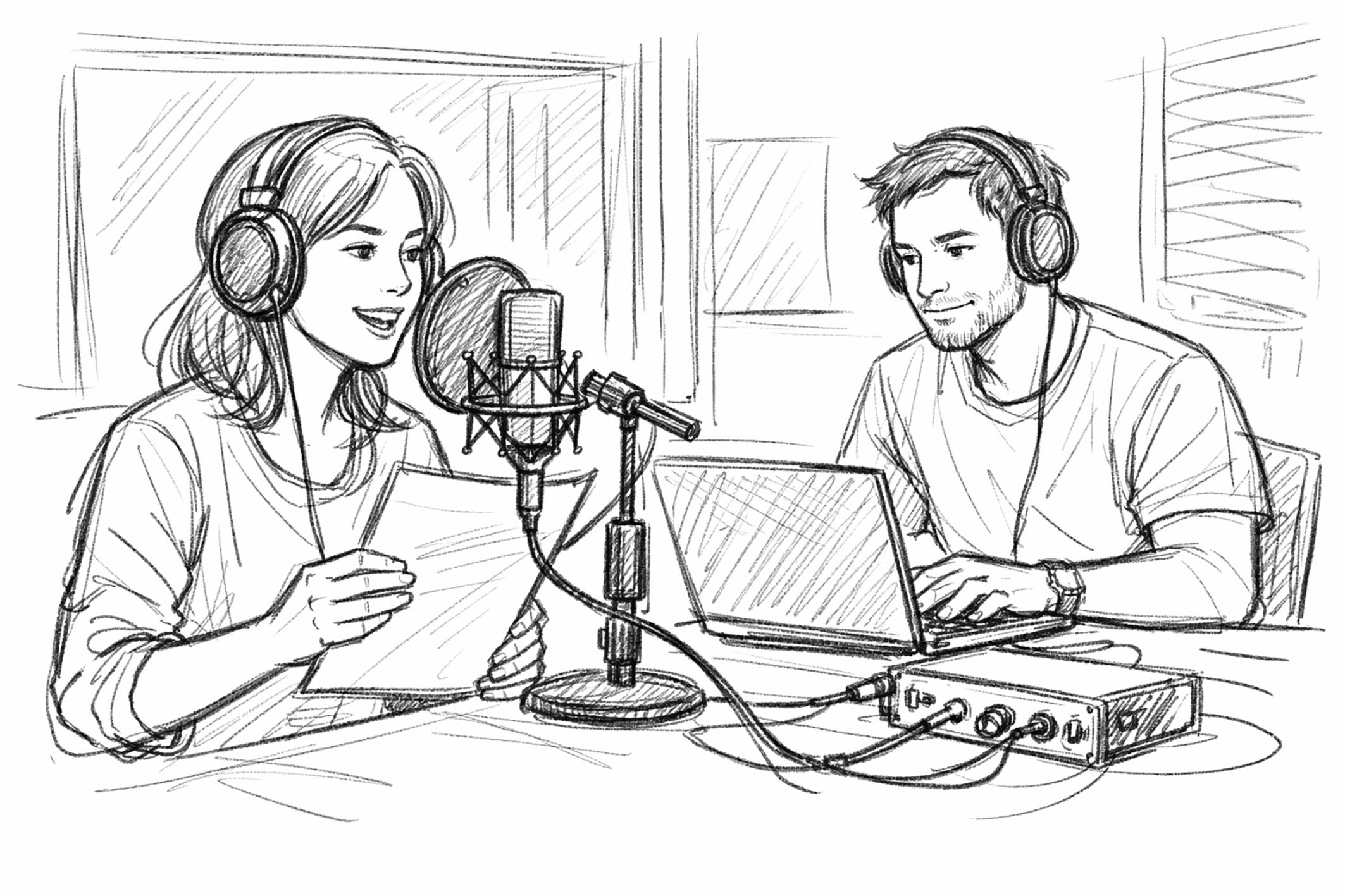 Pre-recorded Audio: This may be the only option available as the chosen narrator (possibly the expert) may have limited time available. Recording live to video may be more time consuming for that person. In pre-recording a script, attention should be given to creating spaces between scenes. This is where efficient storyboarding is essential. Once a script is recorded it can be cut and distributed to scenes contained in the project. Audio recording prior to a visual rough or final edit can be problematic in fitting audio to video.
Pre-recorded audio will in fact dictate the video footage to be used. One advantage of this is that the filmmaker is forced to stick to the original written and recorded script.
A pre-recorded audio file should be made from the best possible equipment and studio (dedicated or makeshift) available to the filmmaker even keeping in mind there are enhancements that can be made via software programs.
Recording narration into an existing project: If this is available to the filmmaker, it may very well be the easiest option to combine video and audio seamlessly. APP allows for this procedure. It may involve several ‘takes’ depending on the skill of the narrator in delivering the script.
Again, equipment and ‘studio’ should be the best available to the filmmaker. A small room is the best choice if an audio studio is not available. Draping of materials such as towels or sheets may assist to eliminate reverb and other audio issues. Built -in laptop microphones may provide acceptable audio but an external microphone such as a table-top or lavalier microphone will most likely produce better audio results.
This linked video outlines the method of recording direct to the APP project and has useful tips regarding enhancing audio input. https://youtu.be/eb04K8CfCJI
There are advantages for each of the two methods outlined above. As stated, pre-recorded audio will ensure the video project will keep directly to the intended script but this makes the project more difficult to evolve during the editing process. Recording directly to video creates a voice over which can deal more efficiently with B roll footage and the use of graphics and illustrations as well as still photographs.
A note about talking heads: It is important that sound (mainly voice) is consistent throughout the video. This may be difficult to achieve especially if the project is to include a presenter who for example, introduces and concludes the video. Subsequent sound recording for narration and voice-over is best recorded in the same space using the same equipment. Sound enhancing editing via software is much more able to achieve consistency if variables are eliminated. Operating theatre sound recording will be very different from a voice over recording, but this would be an acceptable variation as the scene would indirectly notify the viewer about a different audio environment.
Sound consistency throughout a teaching video is as important a factor as colour correction and lighting. There may be acceptable variations but in the main, the filmmaker is to be dedicated to eliminating obvious distractions.
Inserting Still Photographs and Illustrations
The flexibility of video software allows for easy insertion of still photographs and graphics. These are best edited and finalised prior to adding to a layer within the project. It is good practice to crop these to the format that will be used in the video and to ensure resolution is adequately matches the adjacent footage.
Prior planning is helpful in providing a source of photographic stills. It may be an afterthought to place still images in the edit but photography during the video capture, if appropriate, may provide useful material. It should be noted that most video programs allow the editor to produce still images from the footage. If the video resolution is 4K or higher the image quality will be high and quite usable. Very low-resolution photographs are best avoided if possible. Pointing markers, arrows or text can be inserted into a still pre- or post-insertion of an image into the project.
Note that photographs, and graphics do not have a ‘duration’ as they are not moving. When these are inserted to the Timeline, they default in APP to a 5 second duration. They can be extended or reduced for whatever duration they are needed and so easily modified to suit the footage and audio.
Motion or scale effects (see below) are often used with still insertions to avoid a static scene. This may be commonly understood as a “Ken Burns effect”. Editing programs have many options available.
Motion and Scaling
Motion, as called by APP is the movement within the footage shot. It is an editing process that mimics the use of a dolly to move the camera or panning the camera while shooting. Scaling, likewise, is an editing process that mimics zooming of the lens while shooting. Rotation may be required to correct problematic viewing angles created by camera placement during a medical or surgical procedure. All three effects result in position and movement which can be more pleasing to the eye than a static image. It may be used to correct a video capture that loses the central position of the subject at hand.
Motion is a particularly useful (and I believe necessary) tool for the insertion of still photographs into a video. It will negate the static effect of a photograph. In APP motion effects are controlled through the Effects Control panel, located usually on the upper left corner of the editing workspace.
Users can control the adjustment of position, scale and rotation of a specified clip. This is achieved by the creation of keyframes. APP allows for the changing in position of a clip manually (moving a pointer left or right) or by the input of numerical values. As the specifics are not covered in this article, I suggest researching the motion effect techniques found within APP or other software equivalents. Motion and scale effects are important skills that the film maker should acquire to successfully create watchable education based video.
This video explains the basics of using the motion effect very well. https://youtu.be/cWIRwr9ZYp0 Although it is old, and there have been many software improvements and additions, this video is a great start to learning about keyframes. The presenter focusses on motion within the footage of a still photograph.
The following video pertains to food videography, but the presenter outlines the basic use of keyframes to scale and position footage. https://youtu.be/f8C23eWuts4
A word of caution; if these effects are poorly implemented (e.g., jerky) or perhaps over-used then it may be distracting for some viewers. It is important therefore that for a teaching video this fine line between augmenting the learning scope versus distraction, be found.
Adding Text
The use of text and graphics is generally considered to be a crucial inclusion of a teaching video. Just as an illustration may describe facts as outlined in text so too, text over a graphic (moving or still) directs the viewer’s attention to the fact that is to be learnt. It creates a visual pathway for a particular term. There are a variety of ways this can be used. Text might be used in the labelling of an anatomical structure to assist/inform the viewer following the direction of the narration or, perhaps a title for a new section of the video. It can also be used to emphasise key words or phrases spoken by the narrator.
Sections of the video that will require the addition of text include the use of titles at the beginning, and credits at the end of the program. These may be static or rolling. Each is easily attainable with the major software editing programs.
In most cases addition of text involves selecting the Text tool (in APP this is located to the right of the Timeline) and working within a text box in a fashion like photographic editing. Selection of fonts, font sizes, styles and colour are all readily available. On the timeline, text is added as a layer above the clip. The text layer may be enlarged or reduced in duration or moved to come in at a selected point on the Timeline. Transitions can easily be applied to the text box layer.
Text and titles may be best inserted towards the end of the edit. This will depend on the editor’s workflow choice. There are several standards in this area. The main point is to be consistent throughout the video in the use of titles and text. At this point It is helpful to view the safe margins of the timeline display. In APP, this is found in the Tools menu (i.e., the icon for this appears as a wrench) which is located at the lower right of the display. Click this and select ‘Safe Margins’. All text should appear inside the inner box. The outer box is action-safe; the inner box is title-safe.
Text boxes are used to create captions. For a speaker’s name and title, it is usual practice to place the text to the lower left of screen just inside the inner safe margin. Standards also suggest that the name should be displayed on the top line in a slightly larger font size with the person’s description or title below. This should be displayed for approximately 3 seconds only and usually only once during the film. Transition the name quickly, in and out. Footage credits (such as ‘Video supplied by ….’) may be displayed in the same corner. Location titles are displayed at the top left of screen, again inside the inner safe margin. Time and transition effects are like those mentioned regarding ‘name and title’.
In this Adobe in a Minute video, is a short but informative tutorial on text basics in APP: https://youtu.be/Fk2XIJ56AAw and this next Adobe In A Minute video will give a quick guide to creating scrolling text for use with film credits: https://youtu.be/ukKvDWpp-NE
For Final Cut Pro users, a short video on adding text can be seen here: https://youtu.be/9jK6JU1OD9c and a video about scrolling text for credits here: https://youtu.be/gjZsUd4bnqo
In Part 5 of this series we will look at Split Screen, Cropping, Transitions, Exporting Files, and then finish with some concluding thoughts.